All K12Leaders members possess precise control over the timing, location, and manner in which they receive notifications concerning network activity.
Email notifications are straightforward, affecting only the timing of email notifications.
“Web notifications” determine when you will receive a pop-up notification if mentioned in a post or when you receive a direct message. Web notifications manage both browser-based notifications and app notifications.
You can access these settings via your Account -> Email Notifications menu.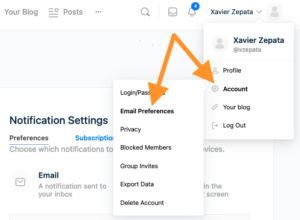
Please see this video for more details.
Every member has the option to toggle their Privacy Settings to appear (or not) in the Member Directory and/or Search results. Those settings are available from your avatar drop down (top right on the web, or from the hamburger menu on mobile) under Account::Privacy. You can search or browse the directory, and Follow and/or Connect with members.
You have a number of options when it comes to managing your relationships on K12Leaders
“Follow” include the other members updates in your view of the public News Feed.
“Connect” (also referred to as a “friendship”) enables private messaging between 2 members. When you click “Connect,” the other member will receive an invitation to connect with you and will need to accept.
“Block” Blocking a member will hide your profile from the other member and will remove any mention of them from your news feed or communications.
“Report” Will send the site administrators a message that you suspect the member of spam, being a fake account, or other issues.
You can set a number variables that control how your profile information is displayed within K12Leaders. You can find those settings under your Profile Dropdown in the top right of the website, or under the Hamburger Menu on the mobile app.
We have a short video here explaining privacy and notification settings.