The lesson page content is where you have full control over adding whatever content you’d like to your lesson. If you’ve added topics or quizzes to your lesson, we automatically add a list of associated content to the bottom of the lesson page.
The lesson page content you add here is your own custom information that will be displayed above any associated topics or quizzes.
Where to Add Lesson Page Content
- Open your Lesson
- You will automatically land on the Lesson page tab
- You can immediately start adding your content
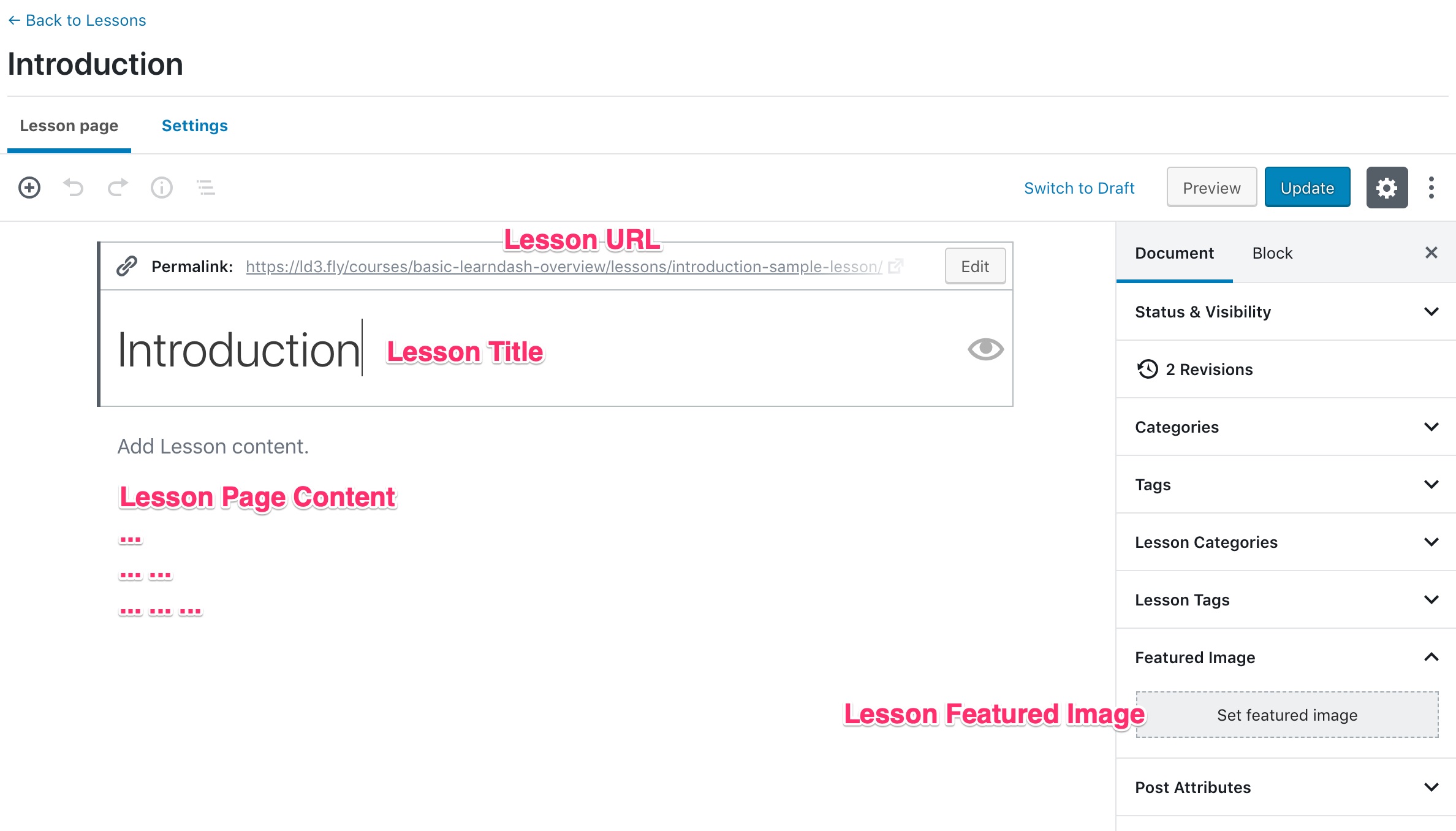
Lesson Title
Your lesson title is the first thing you’ll see at the top of the editing screen. Look for a placeholder that says “Add Lesson title.”
Most themes display the lesson title near the top of the page, below your header and/or global navigation.
Lesson URL
When you click inside of the “Add Lesson title” box, you’ll see an area appear above, labeled “Permalink.” This is your lesson URL.
Lesson Content
Everything below the lesson title is a blank canvas for you to add your content. This is powered by the same editor as your Course Page, Topics, and Quizzes.
Add text, insert images, embed videos or other multimedia content, link to PDFs or audio files… the possibilities are endless. You have full control over the type of learning experience you deliver to your learners. You can add as many content as you like.
If you are adding file embeds such as YouTube videos or SoundCloud audios, you have to make sure that these are publicly viewable. Otherwise, they won’t be able to be played by your users.
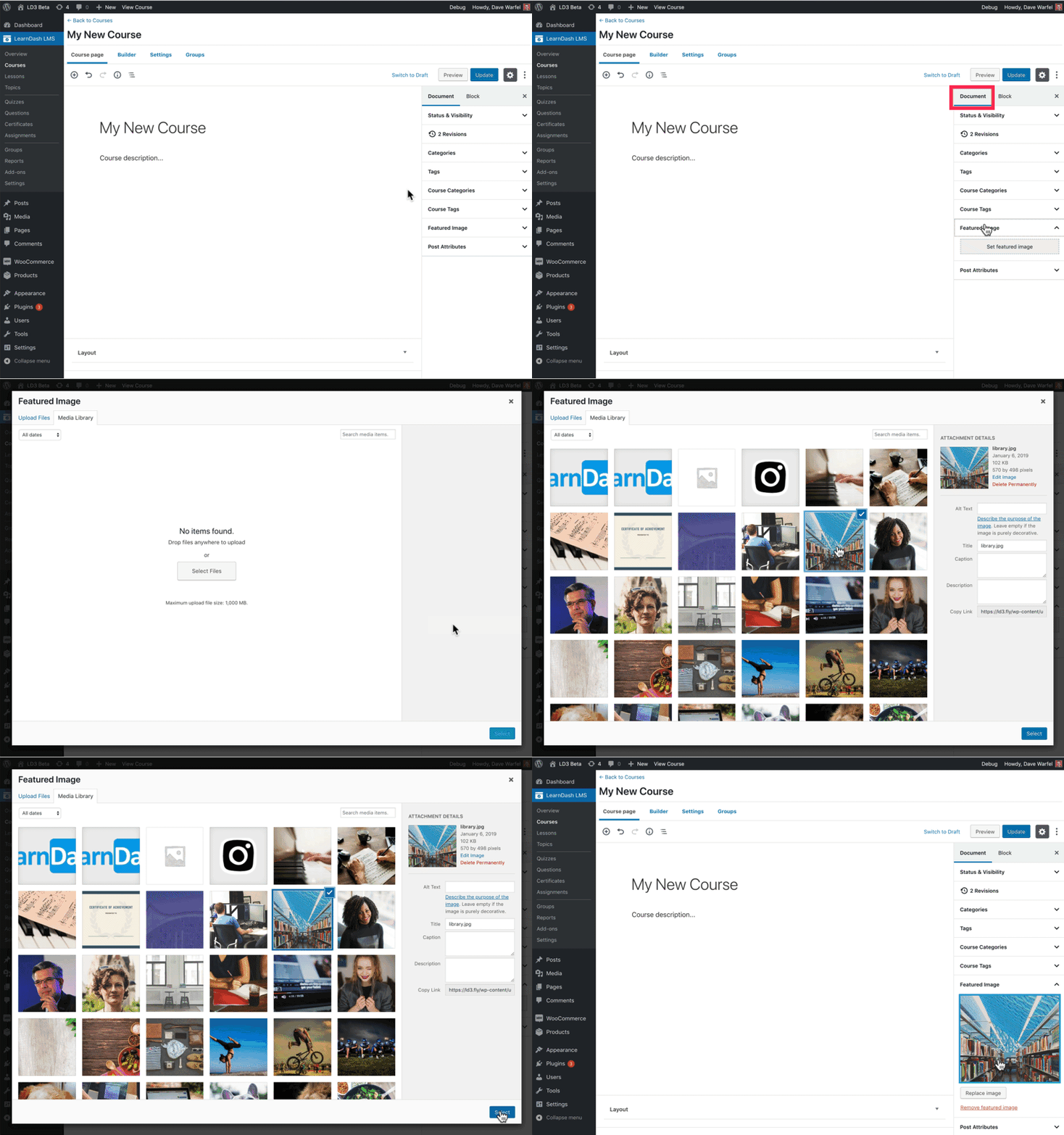
Featured Image
The featured image is the main image associated with your lesson.
- Look for the Featured Image panel in the sidebar
- If it’s not already open, click on it to open it
- Click Set featured image
- Choose an image from your Media Library, or upload a new one
- Click the Select button at the bottom